Drawing SHAPES & using OUTLINES &
FILLS
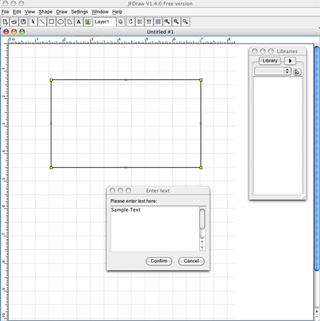
1.) Choose a shape from the toolbar or select "Shape" from the menu at the top and choose a type of shape to create.
2.) Drag out your desired shape and, if it is correct, leave it selected. The shape will appear with a defualt, 1 pixel, black outline and no fill.
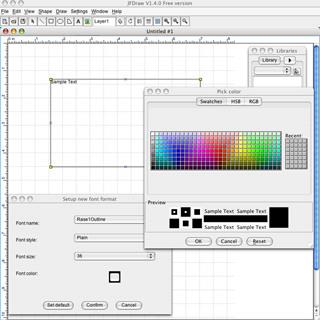
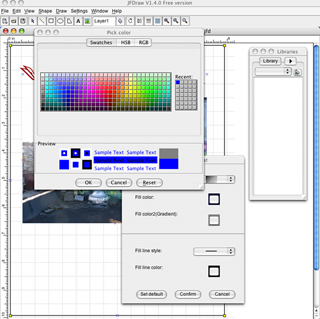
3.) To fill the shape with a color or gradient select "Draw" then "Fill Format" or "Line Format" from the menu at the top. |
4.) A small window will pop up that will allow you to choose a color, create a gradient, choose a line style and color and to set a new default for new shapes. Choose your settings and click "Confirm"
5.) You can continue to edit the outline, fill, size and shape of your object as many times as you want, move it around just by clicking and dragging, cut, copy paste, and group it with other objects how ever you desire. Scale the object by clicking on any of the yellow selection boxes at the objects corners and dragging to the desired shape.
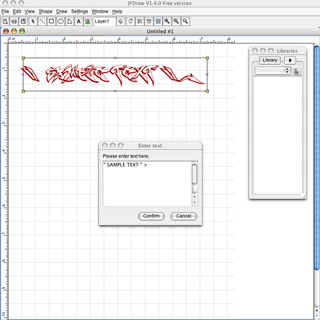
7.) In JF-Draw text and all other shapes start off with a default outline setting. If you want to remove the outline from your SHAPE or text box select "Draw" then "Line Format" from the menu at the top, and set the line width to "0" pixels or "None". |